eBay infographic listing image
eBay guidelines point to no text on the main picture, but extra photo slots can carry information. Send a close photo, list facts in the caption and the bot draws them on badges.
- 2 credits per image
- Result in 1–2 minutes
- No sign-up
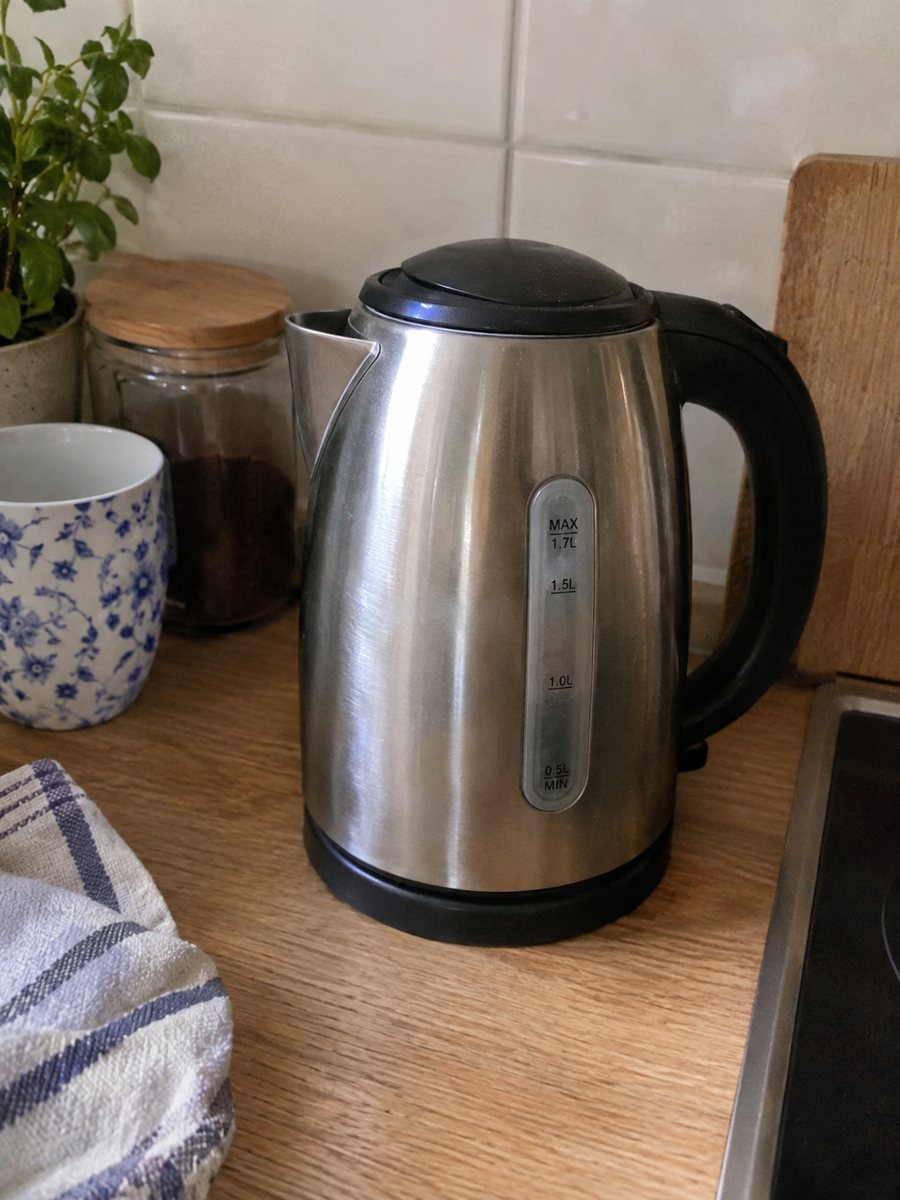
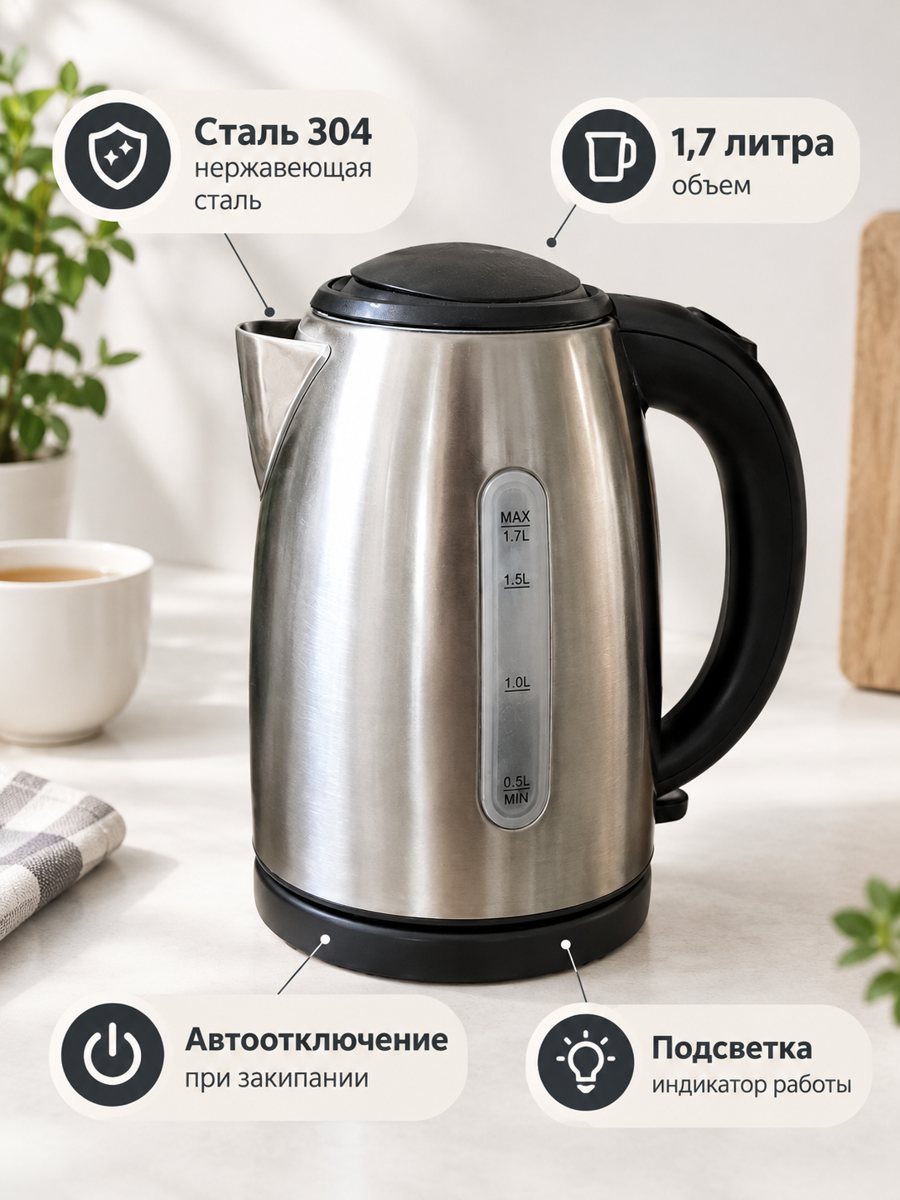 BeforeAfter
In short: eBay infographic listing image for extra photo slots: a close-up with 3 or 4 fact badges from your caption. Keep text off the main picture. 7 images free.
- Where: the VisuMate bot in Telegram, no app or sign-up.
- Cost: 2 credits per image, 7 images free, then packs from 49 Telegram Stars.
- Time: 1 to 2 minutes per image, rerun with a new instruction at the same price.
When you need this
- Buyers ask condition and size questions on every listing.
- You sell new items and want to stand out from used listings.
- Your item has several included parts.
How to do it
- 1
Open @visumate_ai_bot with the button on this page and press Start. The link opens the infographic mode.
- 2
Send a close photo of the item as a file (document). In the caption list the benefits, separated by commas: "Brand new, Size M, Includes charger".
- 3
In 1–2 minutes the vertical 3:4 image arrives in the chat. Read every badge letter by letter, then download it or run again.
Try it on your own photo: 7 images are free, no sign-up.
Make it in TelegramInformation in the later pictures
The first picture is for the item itself. Later pictures can carry information: what is included, size, a feature. An infographic picture is a good fit for that role. Keep it truthful, because a misleading graphic leads to disputes and returns. Keep the main picture free of text and use the infographic as a later picture. If you send no text, the bot asks you for it, so prepare the benefits in advance.
Condition and honesty
For used items, plain phone photos of flaws are more trusted than a graphic. Use the infographic for facts such as size or what is in the box, not to hide wear. Read the current eBay photo rules in your seller account, as limits on text can differ by category. Write the benefits in the caption separated by commas, and keep each one to a few words.
Tips
- Keep the main picture clean and use the infographic as a later photo.
- Use facts: Brand new, Size M, Includes charger.
- Do not hide real condition problems behind badges.
- Check eBay's current photo rules.
Questions and answers
Can I put an infographic as the main eBay photo?
The guideline is no text on the main picture, so use it as an extra picture.
Can I add item condition on a badge?
Only if it is accurate. Honest photos of flaws are still necessary.
How many images can I try for free?
New users get 15 free credits on first launch. One image costs 2 credits, so 7 images are free.
Should I send the photo as a file?
Yes, send it as a document so Telegram does not compress it. A regular photo also works, but a file keeps more detail.
More in "Product photos"
- Amazon infographic imagesAmazon infographic images for secondary slots: a product close-up with 3 or 4 benefit badges taken word...
- Product infographic makerProduct infographic maker in Telegram: send a photo, write 3 or 4 benefits in the caption and get a...
- Shopify product page infographicShopify product page infographic: a close-up with 3 or 4 benefit badges for your gallery or product...
- Supplement bottle photo for AmazonSupplement bottle photo for Amazon on pure white, made from a phone picture. Label stays as is, soft...