Shopify product page infographic
A store page can carry an image that explains the product at a glance. Send a close photo, list benefits in the caption and the bot draws them on badges.
- 2 credits per image
- Result in 1–2 minutes
- No sign-up
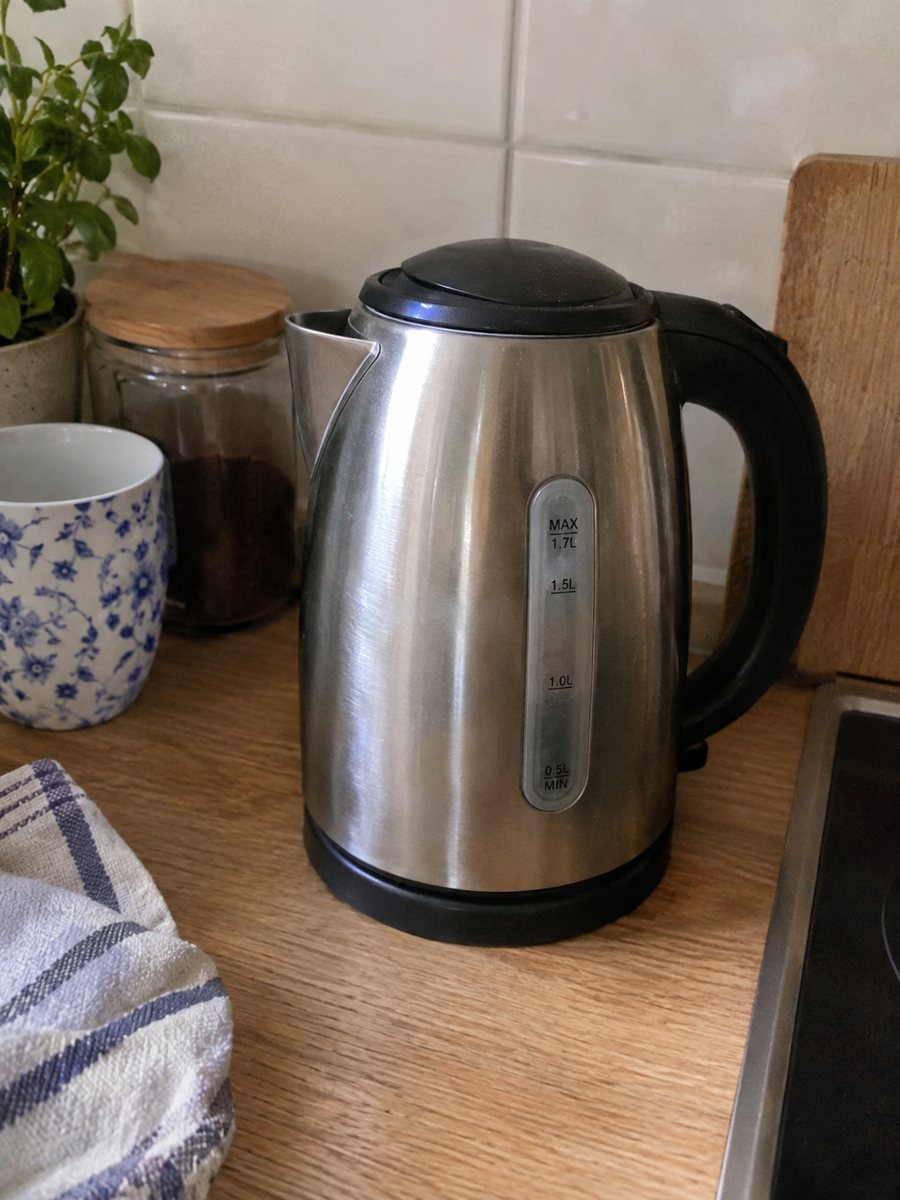
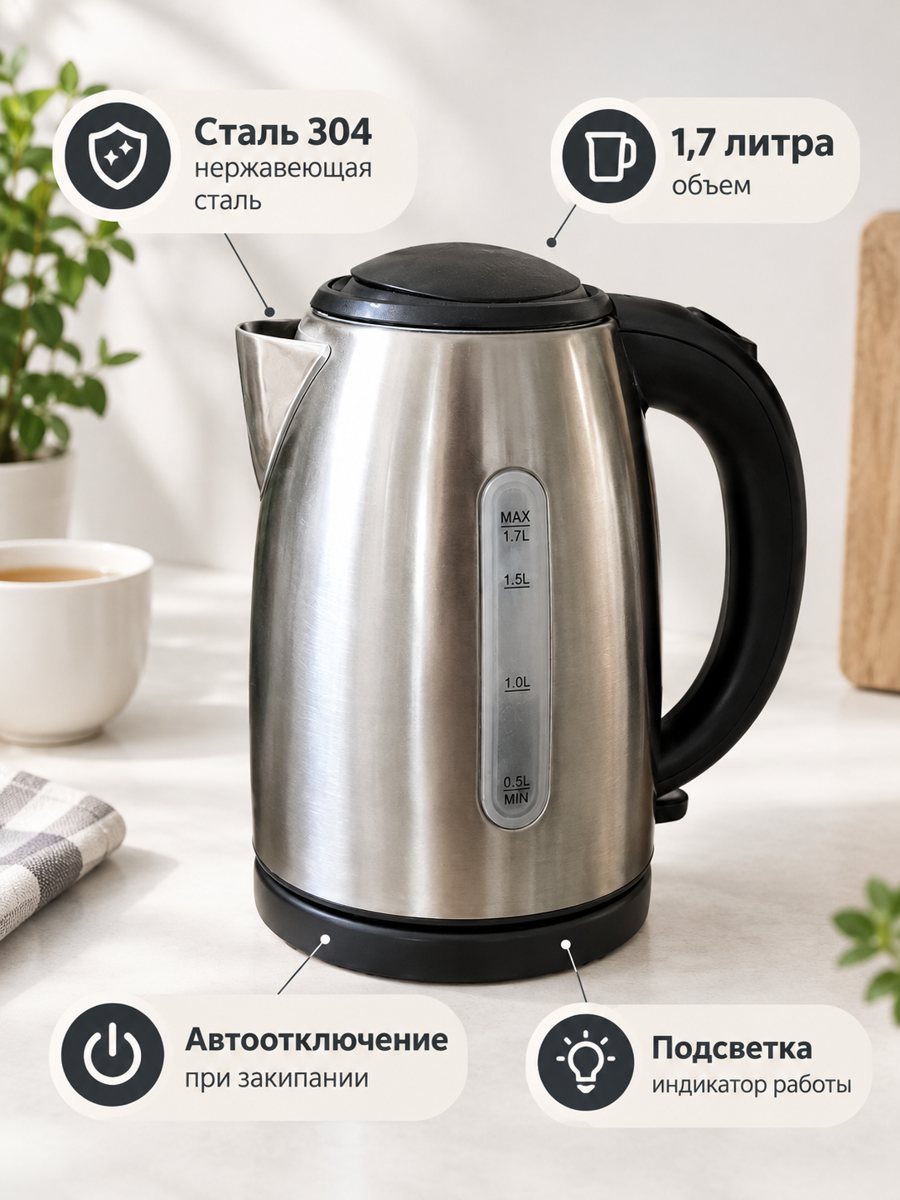 BeforeAfter
In short: Shopify product page infographic: a close-up with 3 or 4 benefit badges for your gallery or product description. Written in the caption, 3:4. 7 images free.
- Where: the VisuMate bot in Telegram, no app or sign-up.
- Cost: 2 credits per image, 7 images free, then packs from 49 Telegram Stars.
- Time: 1 to 2 minutes per image, rerun with a new instruction at the same price.
When you need this
- Your page has a long text block that few visitors read.
- Mobile visitors scroll fast and miss the details.
- You want a consistent set of feature pictures across the store.
How to do it
- 1
Open @visumate_ai_bot with the button on this page and press Start. The link opens the infographic mode.
- 2
Send a close photo of the product as a file (document). In the caption list the benefits, separated by commas: "Organic cotton, Machine washable, Made in small batches".
- 3
In 1–2 minutes the vertical 3:4 image arrives in the chat. Read every badge letter by letter, then download it or run again.
Try it on your own photo: 7 images are free, no sign-up.
Make it in TelegramGallery or description
Use the infographic in the gallery after the cover and lifestyle pictures. You can also place it inside the description above the long text. On a phone, a picture reads faster than a paragraph. Keep the same badge style across the shop so it looks planned. If a word comes out wrong, shorten the caption and run again for another 2 credits.
Writing for consistency
If every product uses three badges of two or three words, the store feels coherent. Make a template: material, size, care. Fill it per product and reuse. Because each run is separate AI work, expect small style changes and rerun outliers. Use the same number of badges and the same wording style across similar products. Each run takes 1 to 2 minutes, so you can prepare a whole set in one sitting.
Tips
- Use the same number of badges on every product.
- Keep wording short and parallel.
- Put the infographic as the third or fourth image in the gallery.
- Check how your theme crops vertical images.
Questions and answers
Does it upload to Shopify?
No. You download the image and upload it yourself.
Can I use my brand font?
No. The AI draws the text, and the font cannot be set exactly.
Does the bot write the listing text?
No. It makes the image only. It does not write listing copy, calculate prices or upload to your seller account.
Is the bot menu in English?
The bot replies in English, and the link from this page opens the right mode.
More in "Product photos"
- eBay infographic listing imageeBay infographic listing image for extra photo slots: a close-up with 3 or 4 fact badges from your...
- Amazon infographic imagesAmazon infographic images for secondary slots: a product close-up with 3 or 4 benefit badges taken word...
- Baby product infographic imagesBaby product infographic images: a close-up of a bottle, blanket or carrier with 3 or 4 fact badges from...
- Skincare bottle photos on a white backgroundSkincare bottle photos on a white background with a soft shadow. Send a phone picture of a serum, cream or...