Amazon product image size in pixels
Image size on Amazon decides whether shoppers can zoom into your product. This guide explains the pixel logic in plain terms and shows how to produce a clean main image from a phone photo.
- 2 credits per image
- Result in 1–2 minutes
- No sign-up
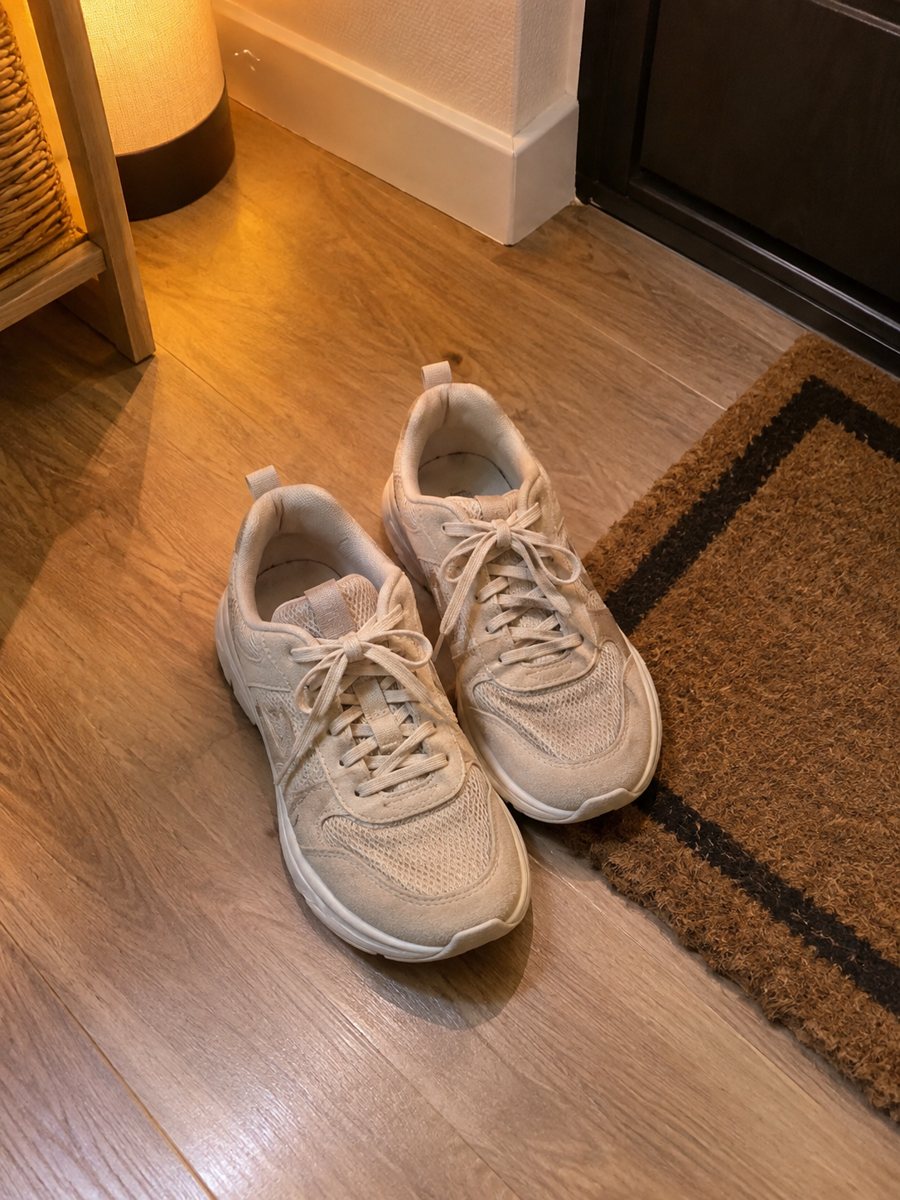
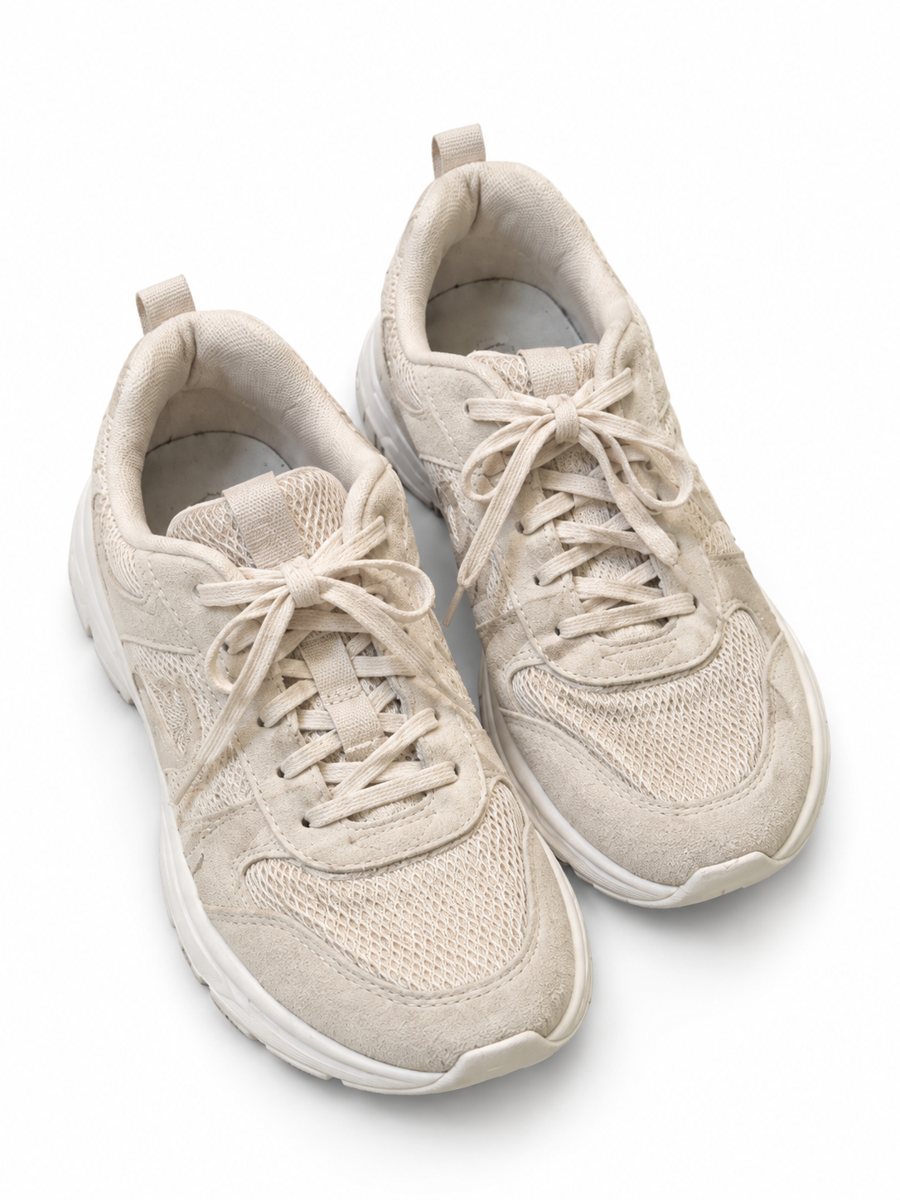 BeforeAfter
In short: Amazon product image size in pixels explained: what makes zoom work, why bigger files help, and how to get a clean 3:4 white-background image. 7 images free.
- Where: the VisuMate bot in Telegram, no app or sign-up.
- Cost: 2 credits per image, 7 images free, then packs from 49 Telegram Stars.
- Time: 1 to 2 minutes per image, rerun with a new instruction at the same price.
When you need this
- Zoom does not work on your listing or the picture looks blurry when enlarged.
- You are not sure whether to measure width, height or the longest side.
- A photo straight from a messenger is small and compressed.
How to do it
- 1
Open @visumate_ai_bot with the button on this page and press Start. The link opens the white background mode.
- 2
Send the product photo as a file (document), so Telegram keeps the full resolution. In the caption write: "white background, product fills the frame".
- 3
In 1–2 minutes the vertical 3:4 image arrives in the chat. Download it, check its pixel size in an editor, then upload it to your listing.
Try it on your own photo: 7 images are free, no sign-up.
Make it in TelegramWhy pixels matter for zoom
Amazon shows a zoom view only when the image is big enough. Sellers commonly aim for at least 1000 px on the longest side, and more is better because shoppers look at texture, stitching and labels. The exact limits and the allowed file types are listed in Seller Central, and they change, so read them there before you export. This page does not quote a number as an official rule.
Minimum, best and too big
A minimum gets the image accepted. A larger size gives a sharper zoom. Very large files load slower and may hit an upload limit, so stop at a size that stays sharp when you zoom to full. A simple approach is to export one master image and resize copies from it. Resize down, not up, because enlarging does not add real detail.
What the bot gives you
The bot returns a vertical 3:4 image. It does not let you choose exact pixels. After you download the file, open it in any editor, read the dimensions and compare them with the Seller Central rule for your category. If you need a different ratio, crop with a margin so the product stays whole.
Tips
- Think in the longest side: the more pixels on it, the better the zoom.
- Send the original from your phone camera as a file, not a forwarded copy.
- Check pixel size on the downloaded file, not in the chat preview.
- Do not enlarge a small image in an editor and expect more detail.
Questions and answers
Can the bot output 2000 x 2000?
No. It outputs a 3:4 vertical image. Resize or crop in an editor to reach an exact pixel size.
Should I send my photo as a file?
Yes, send it as a document so Telegram does not compress it. A regular photo also works but keeps less detail.
Will a bigger image always be accepted?
Not always. Amazon sets upper limits too. Check the current numbers in Seller Central.
Is the bot menu in English?
The bot replies in English, and the link from this page opens the right mode.
More in "Product photos"
- Amazon main image requirementsAmazon main image requirements in plain words: white background, product fill, size for zoom, no text....
- Amazon main image on a white backgroundTurn a phone photo into an Amazon main image on a pure white background with a soft shadow. No text or...
- Marketplace photo requirementsMarketplace photo requirements for Amazon, Etsy and eBay in plain terms: background, size and text. Check...
- Remove the background from a product photoRemove the background from a product photo and place the item on pure white with a soft shadow. Send a...