Remove scratches from an old photo
Send a scan or a phone picture of a scratched print and the bot paints out the scuffs and white lines while keeping faces, clothes and background. Black-and-white photos stay black-and-white.
- 2 credits per image
- Result in 1–2 minutes
- No sign-up
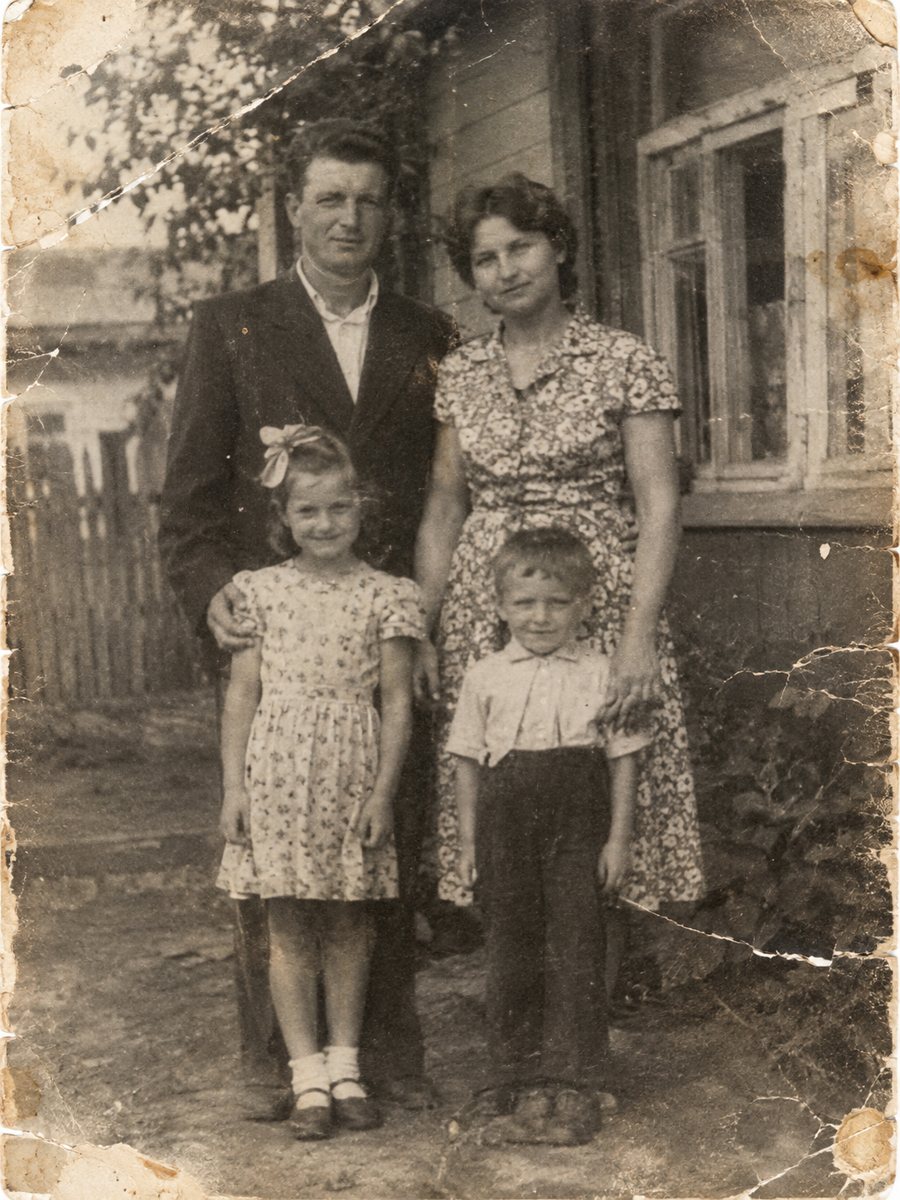
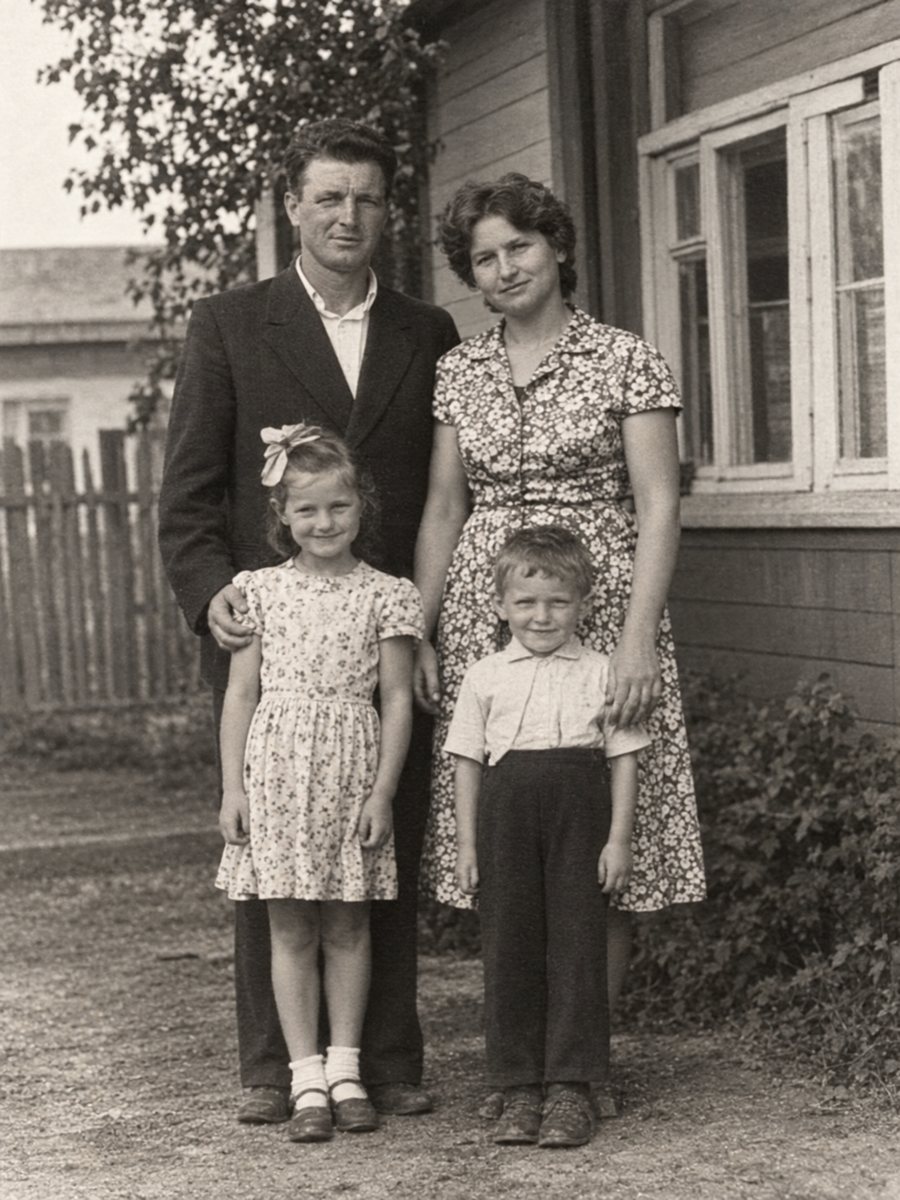 BeforeAfter
In short: Thin white lines and scuffs across a face or sky can be cleaned from a scan or phone picture of the print in 1-2 minutes.
- Where: the VisuMate bot in Telegram, no app or sign-up.
- Cost: 2 credits per image, 7 images free, then packs from 49 Telegram Stars.
- Time: 1 to 2 minutes per image, rerun with a new instruction at the same price.
When you need this
- A long scratch runs across a face and you cannot find the person under it.
- The print was kept loose in a drawer and picked up fine white lines from other photos.
- A scan shows scuffs that were barely visible on the paper.
How to do it
- 1
Use the button on this page to open the bot in Telegram, then press Start. Your 15 free credits appear on first launch.
- 2
Send the scan or phone picture as a file (document) so Telegram does not compress it. In the caption you can write where the scratches are, for example: long scratch across the left side, keep the faces unchanged.
- 3
In 1-2 minutes the repaired photo arrives in the chat. Download it, compare it with the original and run again if a spot was missed.
Try it on your own photo: 7 images are free, no sign-up.
Make it in TelegramWhy scratches are easy and hard at the same time
A scratch on a plain area like a wall or sky is simple to fill because the surroundings tell the AI what belongs there. A scratch across a face is harder. The bot has to guess a few pixels of skin or an eyebrow. Most of the time it looks natural, but check eyes, lips and teeth, because those details carry the likeness of a person. If a face looks different from the original, run it again.
Scanning or photographing a scratched print
Light that comes from the side makes scratches pop out, and that can hurt a scan. Use even daylight near a window, no flash, and keep the camera parallel to the print. If a scanner shows a rainbow reflection on a glossy print, tilt the paper slightly and scan again. A clean, flat image gives the bot more real detail to hold on to while it removes the lines.
Tips
- Scan at 600 dpi or photograph the print flat in daylight, so thin scratches are visible to the AI.
- Very long scratches that cross eyes or mouths are the riskiest spots, so check them first at full size.
- Do not wipe the print with a damp cloth before scanning, you may add new marks.
- Keep the original scan and the result side by side, then pick the better crop for each area.
Questions and answers
Will the scratches disappear completely?
Most thin scratches do. Deep gouges that remove the image itself are rebuilt by the AI, so the filled area is a plausible guess, not the original.
Does the photo stay black and white?
Yes. The repair mode keeps black-and-white pictures black-and-white. Use the colorize mode if you want color.
Is the bot menu in English?
The bot replies in English, and the link from this page opens the right mode.
What if one scratch is still visible?
Run it again with a caption that points to the spot. The second run costs the same 2 credits.
More in "Photo restoration"
- Fix creases in an old photoBent corners and crease lines that cut across a portrait can be smoothed out from a scan or a phone...
- Remove fold lines from a photoCross-shaped fold marks on prints that were folded to fit an envelope or a pocket can be cleaned from a...
- Restore a photo from a newspaper clippingClippings carry halftone dots, ink bleed and yellow paper. Scan the clipping flat and the bot cleans the...
- Enhance an old photo's resolution for printingA small old scan will look soft in a large frame. Check the size you need, rescan if possible and use the...