Send a photo as a file in Telegram
When you send a regular photo in Telegram, the app shrinks and recompresses it. For a casual snapshot this does not matter. For a scan of an old print it removes the fine detail that restoration needs. Send it as a file and the bot receives the picture as it is.
- 2 credits per image
- Result in 1–2 minutes
- No sign-up
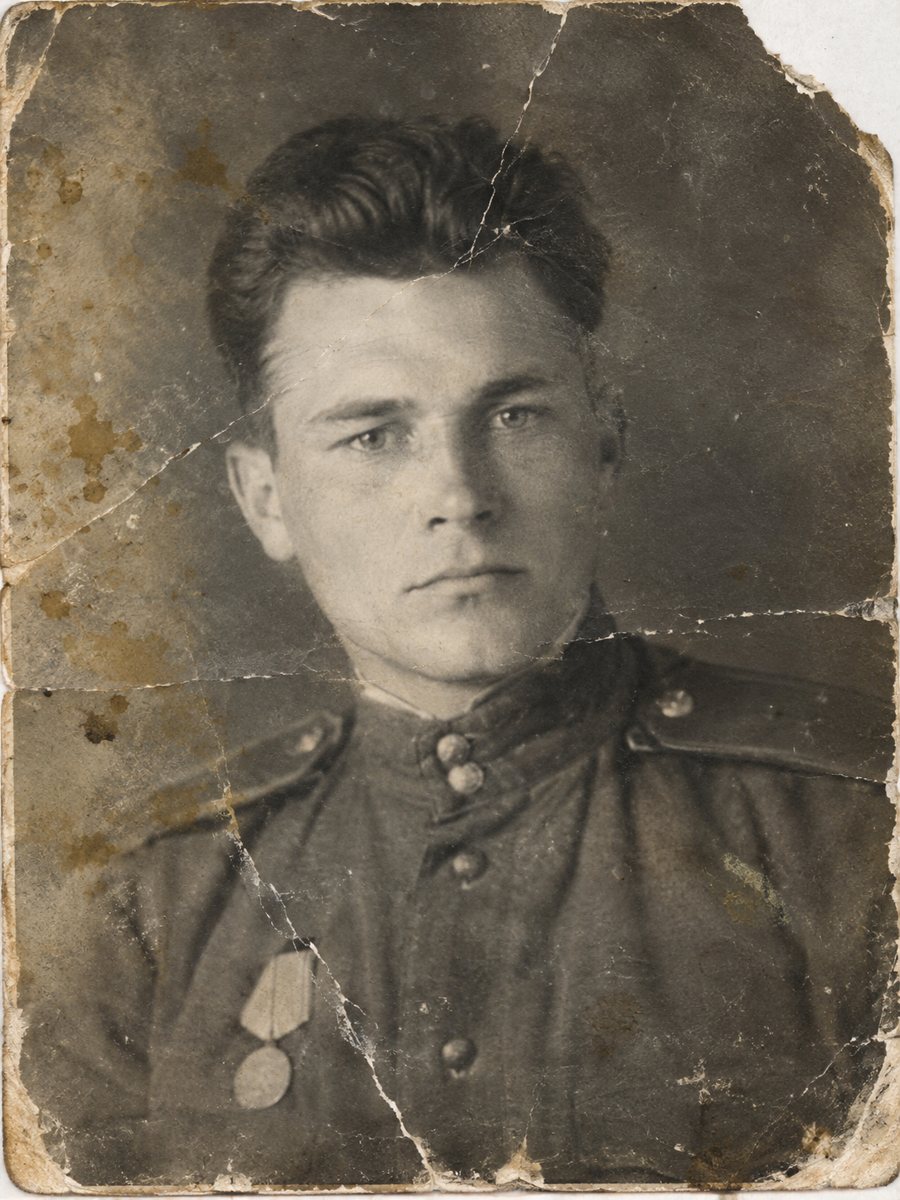
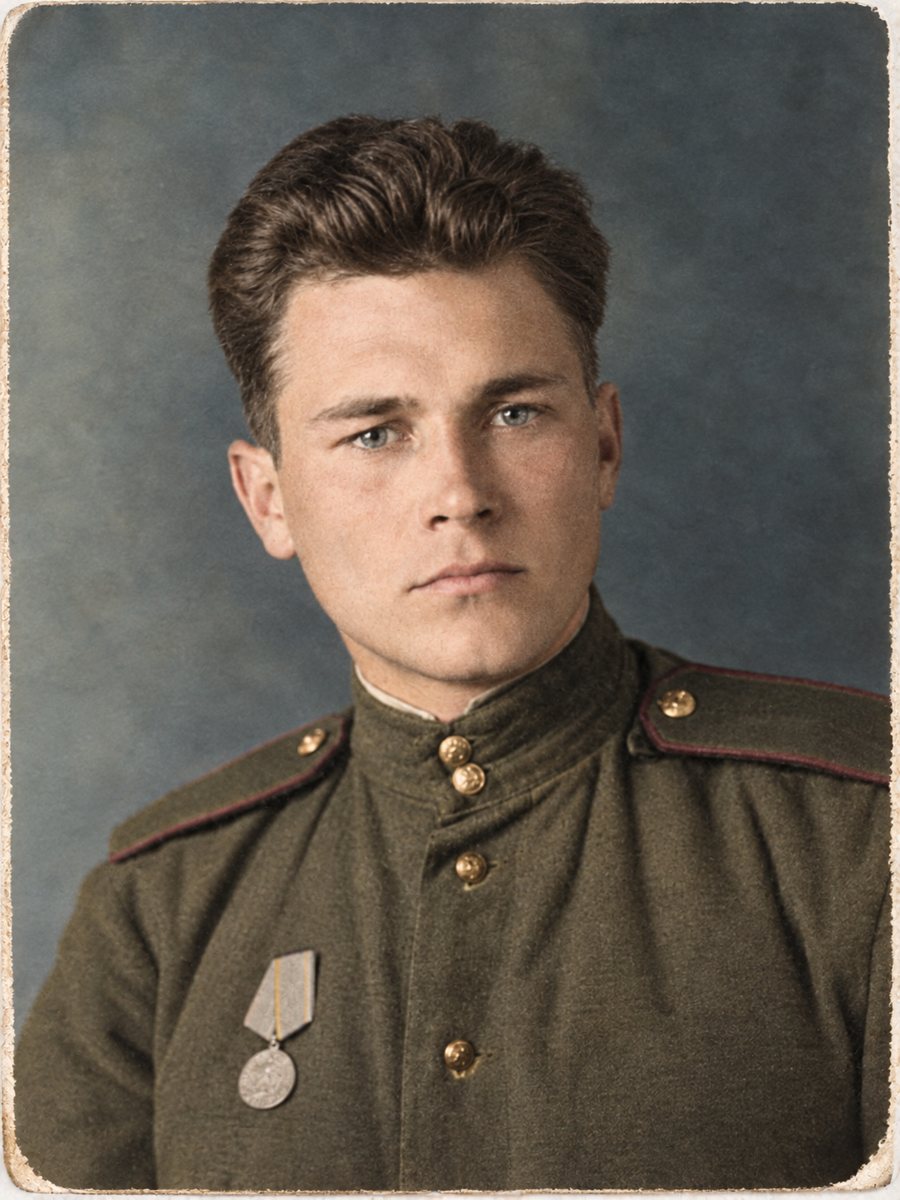 BeforeAfter
In short: Telegram compresses regular photos. Send scans and old prints as a file to keep full detail. Phone and desktop steps, and why it matters. 7 images free.
- Where: the VisuMate bot in Telegram, no app or sign-up.
- Cost: 2 credits per image, 7 images free, then packs from 49 Telegram Stars.
- Time: 1 to 2 minutes per image, rerun with a new instruction at the same price.
- Credits never expire, there is no subscription and no auto-renew. You pay once for a pack inside Telegram with Stars.
When you need this
- A scan looks softer after you sent it in a chat.
- You do not see where the file option is.
- You wonder whether this changes the result.
How to do it
- 1
Open the chat with the bot and tap the paperclip, or the attach button.
- 2
In the attach menu choose File (also called Document), then pick your scan or photo from the files list.
- 3
Add a short caption and send. The bot processes the original file.
Try it on your own photo: 7 images are free, no sign-up.
Make it in TelegramWhy Telegram compresses photos
A regular photo in a chat is resized and compressed so it loads quickly on any connection. That is useful for conversations, and costly for a scan of a fine old print. Faint hair strands, lettering and soft shading are the first things to go. Once compression has thrown the data away, no tool can bring it back, so the file you send decides the ceiling of the result.
Why it matters for old photos
Restoration and sharpening work from the detail in the file. A compressed file starts with fewer pixels and added block artifacts, which can look like damage. The bot may then try to fix things that came from the chat, not from the print. A file keeps the scan as you made it, so the AI sees what is there. For a damaged face, that can make the difference between a close likeness and a guess.
What to send
Scan the print flat at a high setting, or photograph it by daylight with no flash and no glare, and send the original file. Large files take a little longer to upload. The bot works with either a file or a regular photo. New users get 15 free credits, 2 credits per image, so 7 images are free to test the difference.
Tips
- On a phone, choose the File option in the attach menu and select the picture from the files list. Picking it from the gallery tab may send a regular photo.
- On a desktop, drag the file into the chat, then choose to send it without compression if the dialog asks.
- Menus differ between Telegram versions, so look for the word File or Document.
- A regular photo also works, only with less detail.
Questions and answers
Is a file different from a photo in Telegram?
Yes. A regular photo is compressed. A file is sent unchanged.
Will the bot accept a file?
Yes. Sending as a file is the recommended way.
Does a file cost more credits?
No. Each image is 2 credits either way.
Can I send a screenshot as a file?
Yes, but a screenshot already lost detail, so use the original if you have it.
Where is the File option?
In the attach menu, next to the gallery. The wording is File or Document.
What the bot does not do
- Does not print photos and does not retouch passport or ID photos.
- Does not promise a fixed pixel size. Check the result at full size before printing.
- Heavily damaged faces are reconstructed by AI and may not look like the person. Compare with another photo.
- Does not make video or animate the photo.
More in "Photo restoration"
- Restore an old photo with a Telegram botSee how a Telegram bot restores old photos: start, send a file, add a caption and receive the result in...
- Telegram photo editor botWhat a Telegram photo bot does with a picture you send: restore, colorize, sharpen, listing images, styled...
- Scan and restore old photosGood scans make good restorations. Learn the right dpi, how to avoid glare and why to send files as...
- Restore an old photo from a phone pictureNo scanner at hand? Photograph the print flat in daylight, send the file as a document and let the bot...