Restore old photo prompt for Gemini
Here are plain prompts you can paste into Gemini to repair an old photo, plus a short checklist to catch what the AI changed. The same wording works as a caption in the VisuMate bot.
- 2 credits per image
- Result in 1–2 minutes
- No sign-up
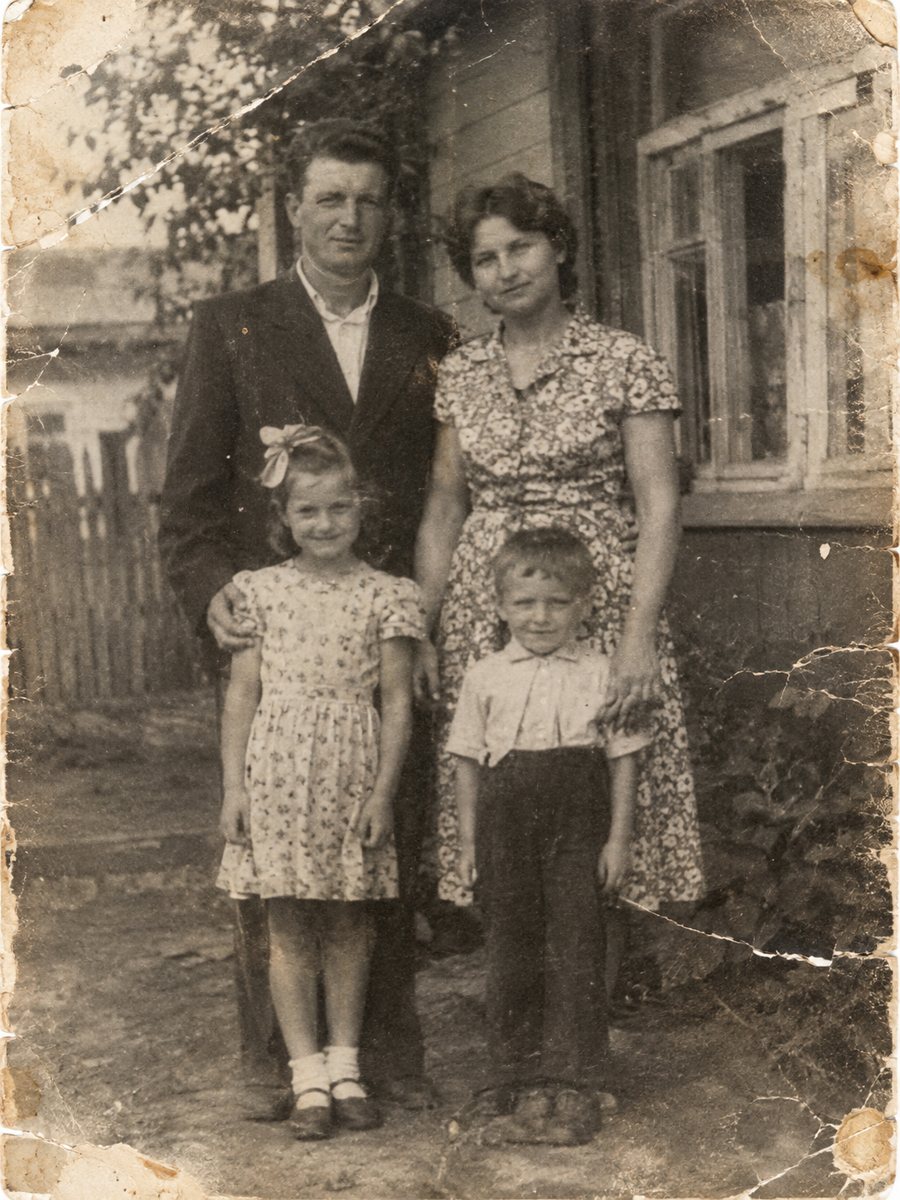
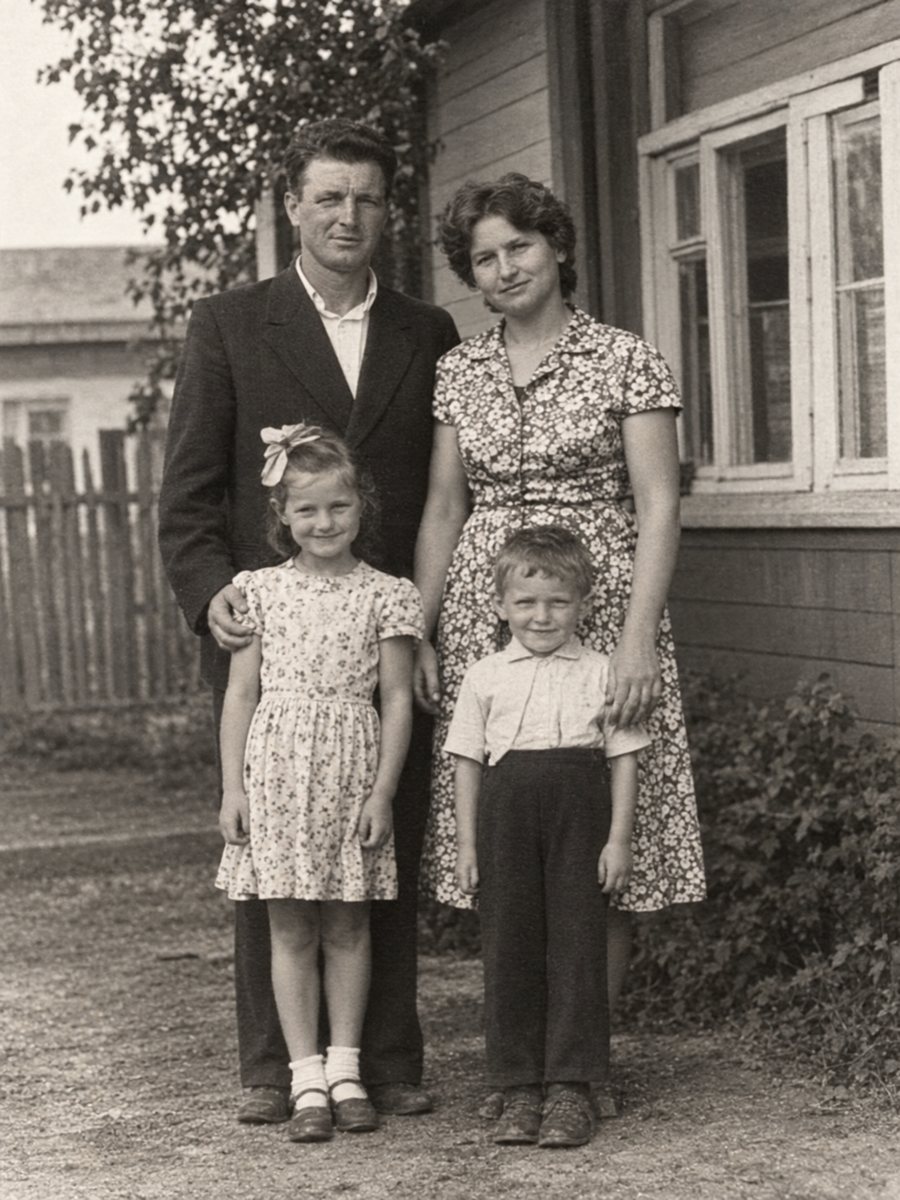 BeforeAfter
In short: Copy-ready prompts to restore an old photo in Gemini, a checklist for faces, hands and text, and how the same wording works as a caption in the bot.
- Where: the VisuMate bot in Telegram, no app or sign-up.
- Cost: 2 credits per image, 7 images free, then packs from 49 Telegram Stars.
- Time: 1 to 2 minutes per image, rerun with a new instruction at the same price.
When you need this
- You pasted a vague prompt and the face came back looking like someone else.
- You are not sure what to check in the result before you share it.
- You want one wording that works in a chat assistant and in a photo bot.
How to do it
- 1
Open the bot with the button on this page and press Start. The restoration mode is selected.
- 2
Send the scan as a file (document) and paste one of the prompts from this page as the caption.
- 3
Wait 1-2 minutes, then run the checklist below on the result before you save it.
Try it on your own photo: 7 images are free, no sign-up.
Make it in TelegramPrompts to start with
Prompt: Restore this old photo. Remove scratches, creases, stains and dust. Keep the faces, clothes, pose and background exactly as they are. Do not add new objects.
Prompt: Repair the damage in this scanned photograph and fill missing corners to match the surrounding area. Keep it black and white.
Prompt: Fix the fading and low contrast in this photo. Keep every face unchanged and do not smooth the skin.
Prompt: Remove the tape marks and the fold line across the middle of this photo. Do not change anything else.
Prompt: Clean up this old family photo like a careful retoucher would. Same people, same clothes, same composition.
Checklist for the result
Faces: compare eyes, nose, mouth and hairline with the original and with another photo of the same person. Hands: count fingers and look at how they join the wrist. Text on the photo: signs, writing on a card or a date stamp can be rewritten into nonsense, so compare letter by letter. Background objects: look for things that appeared or vanished, such as a window, a lamp or a person at the edge.
If one item fails, repeat the request with that item named in the prompt.
General cautions
A general-purpose assistant may change faces, may smooth skin too much, may refuse some requests with identifiable people, and may return a compressed image. Results vary between runs, so treat the first output as a draft. Upload the highest quality scan you have. Check the current limits and options in the app you use, since they change.
The same wording in the bot
In the bot, send the photo as a file (document) and paste the prompt as the caption. The restoration mode already keeps faces, clothes and background, so a short caption is enough. The free start gives 15 credits, 2 per image, so you can test a prompt on 7 images. A rerun costs the same as the first run.
Tips
- {'Say what must not change': 'faces, clothes, pose, background.'}
- Ask for repair only. Words like "improve" or "modernize" invite changes.
- Check the result at full size, then compare faces with another photo.
- Keep prompts short. One clear request beats a paragraph of adjectives.
Questions and answers
Which prompt should I try first?
The first one on this page. It names what to remove and what to keep.
Why did the face change?
AI rebuilds damaged areas from patterns. Name the face in the prompt as unchanged and compare it with another photo.
Can I use these prompts in the bot?
Yes. Paste them as the photo caption. The bot replies in English. You can switch the language any time with /lang.
Do I need to colorize at the same time?
No. Restore first, then colorize in a second step if you want color.
How many tries does the free start allow?
7 images, because each costs 2 credits out of 15.
More in "Photo restoration"
- Restore old photo prompt for ChatGPTPrompts for restoring an old photo in ChatGPT and the usual failure cases: invented details, changed...
- Restore an old photo for freeTry the bot with 15 free credits, enough for 7 images. See what the free start covers, what costs extra...
- What AI photo restoration can and cannot doA plain list of strengths and limits: scratches, stains and fading are fixable, while lost faces and fine...
- Restore an old photo with a Telegram botSee how a Telegram bot restores old photos: start, send a file, add a caption and receive the result in...