X (Twitter) post image size
X crops pictures in the timeline, and the crop depends on the shape and on how many images you attach. This page explains the usual ratios and how to use a 3:4 product picture from the bot.
- 2 credits per image
- Result in 1–2 minutes
- No sign-up
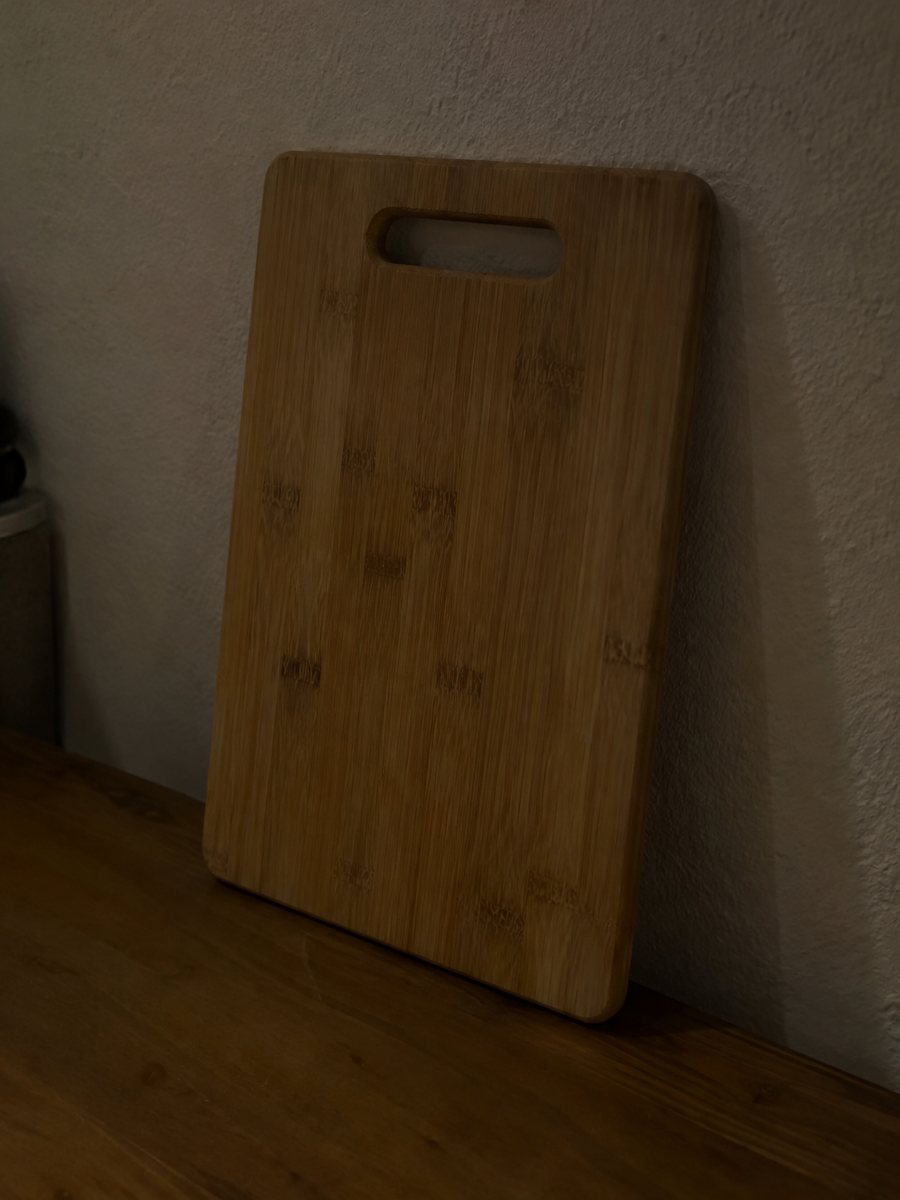
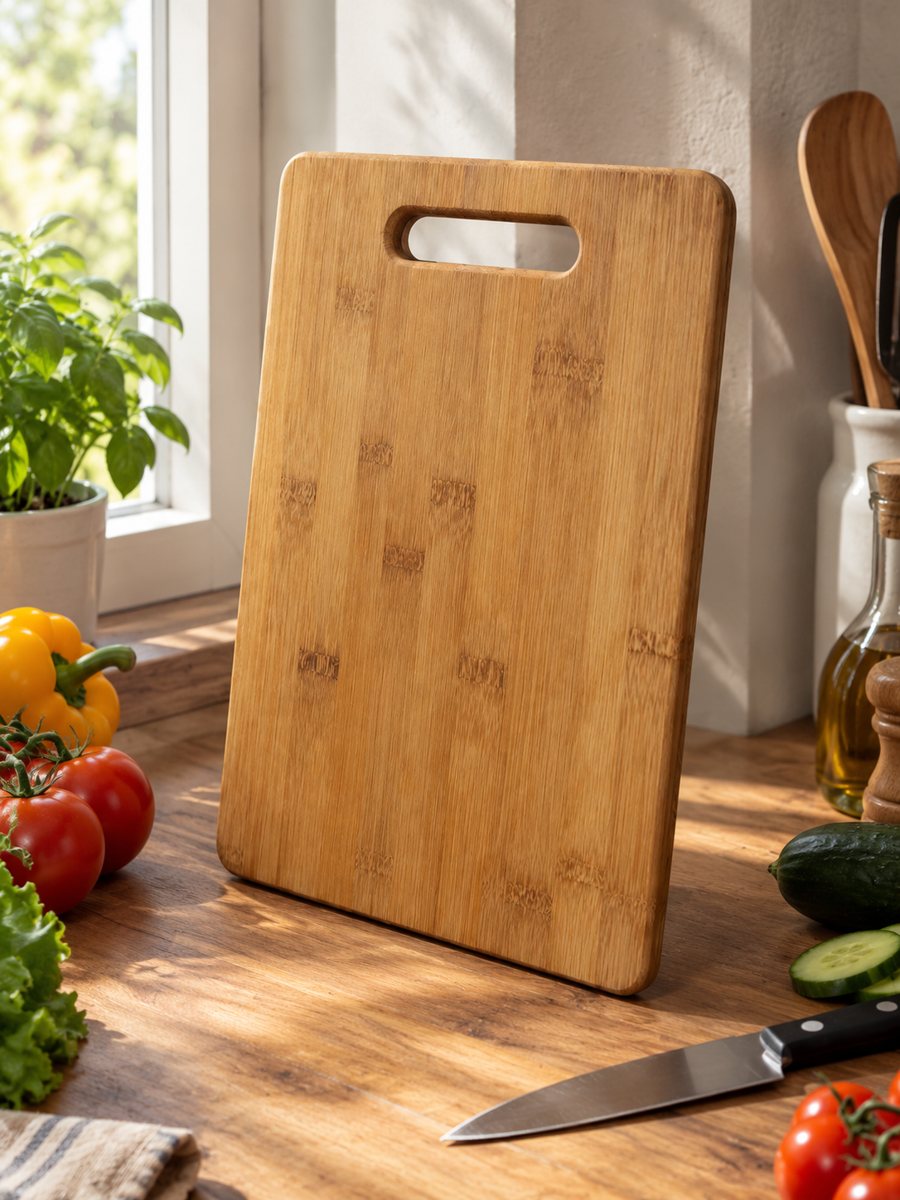 BeforeAfter
In short: X (Twitter) post image size in plain words: how the timeline crops pictures, which ratios to plan for, and how to use 3:4 product photos. 7 images free.
- Where: the VisuMate bot in Telegram, no app or sign-up.
- Cost: 2 credits per image, 7 images free, then packs from 49 Telegram Stars.
- Time: 1 to 2 minutes per image, rerun with a new instruction at the same price.
- Credits never expire, there is no subscription and no auto-renew. You pay once for a pack inside Telegram with Stars.
When you need this
- Your product is cut off in the timeline preview.
- A tall picture shows only the middle part.
- You want a product post that looks tidy on mobile.
How to do it
- 1
Open @visumate_ai_bot with the button on this page and press Start. The link opens the product photo menu.
- 2
Send the photo of the item as a file (document). In the caption write what you need, for example: "clean light background, product centered".
- 3
You get a vertical 3:4 image in 1–2 minutes. Download it and crop to a wider frame in your editor if you want it fully visible.
Try it on your own photo: 7 images are free, no sign-up.
Make it in TelegramHow the timeline shows images
X previews pictures in the timeline and may crop tall ones, then shows the full image when you tap. A wide frame around 16:9 is the shape guides quote most often, and tall pictures are supported with a cropped preview. The platform changes its display from time to time, so test with a draft post. The bot returns 3:4, so for a wide post crop a wide strip around the product and keep the original for the tall version.
Product posts
A product post works best with one clear picture and a short line of text in the post itself. Use the white or studio preset for a plain product and the scene preset for a mood picture. Because the preview crops the edges, keep the most important part of the product in the middle. If you attach several images, each one may show in a smaller tile with its own crop, so check that too.
Keep the full image sharp
Social platforms recompress pictures, which softens fine detail. A large, sharp source file helps, and so does a simple background. Avoid long text inside the picture: the bot can draw badges, but the AI might misspell, and small letters become unreadable in a timeline. Put your message in the post text and let the picture show the product. Export in a high quality format.
Tips
- Keep the product centered with margin, since previews crop the edges.
- Use a wide copy such as 16:9 for a post with one image.
- Open the post on your phone to check the preview.
- Keep the important details large and out of the corners.
- Check X's current help page for supported sizes.
Questions and answers
What ratio does X use?
Wide pictures around 16:9 are common, and tall pictures show a cropped preview. Check X's help page and test with a draft.
Can I post the 3:4 picture as it is?
Yes, though the timeline preview may crop it. Crop it yourself for control.
Does the bot post to X?
No. You download the file and post it.
Can the bot make a banner for X?
The banners section of the site covers banner formats.
How much is free?
15 credits, so 7 images at 2 credits each.
What the bot does not do
- Does not output a transparent PNG. The result is a finished 3:4 image with a background.
- Does not write listing copy, set prices or upload anything to your seller account.
- Does not guarantee exact marketplace pixel sizes: crop or resize the 3:4 image in any editor.
- Text on infographics is drawn by AI and can have letter errors in long phrases. Keep badges short and proofread.
More in "Product photos"
- Lifestyle product photography with AILifestyle product photography with AI: send a phone picture, describe the scene and get your product in a...
- Product lifestyle photo ideasProduct lifestyle photo ideas for sellers: kitchen, bath, desk, gym, beach and garden scenes you can write...
- Marketplace photo requirementsMarketplace photo requirements for Amazon, Etsy and eBay in plain terms: background, size and text. Check...
- Instagram Shop product photo sizeInstagram Shop product photo size in plain words: square or vertical frames, a clean first image, and how...