Sharpen a low-resolution scan
Low-resolution scans lack detail from the start. The sharpen mode adds plausible detail, though a better scan often beats any processing.
- 2 credits per image
- Result in 1–2 minutes
- No sign-up
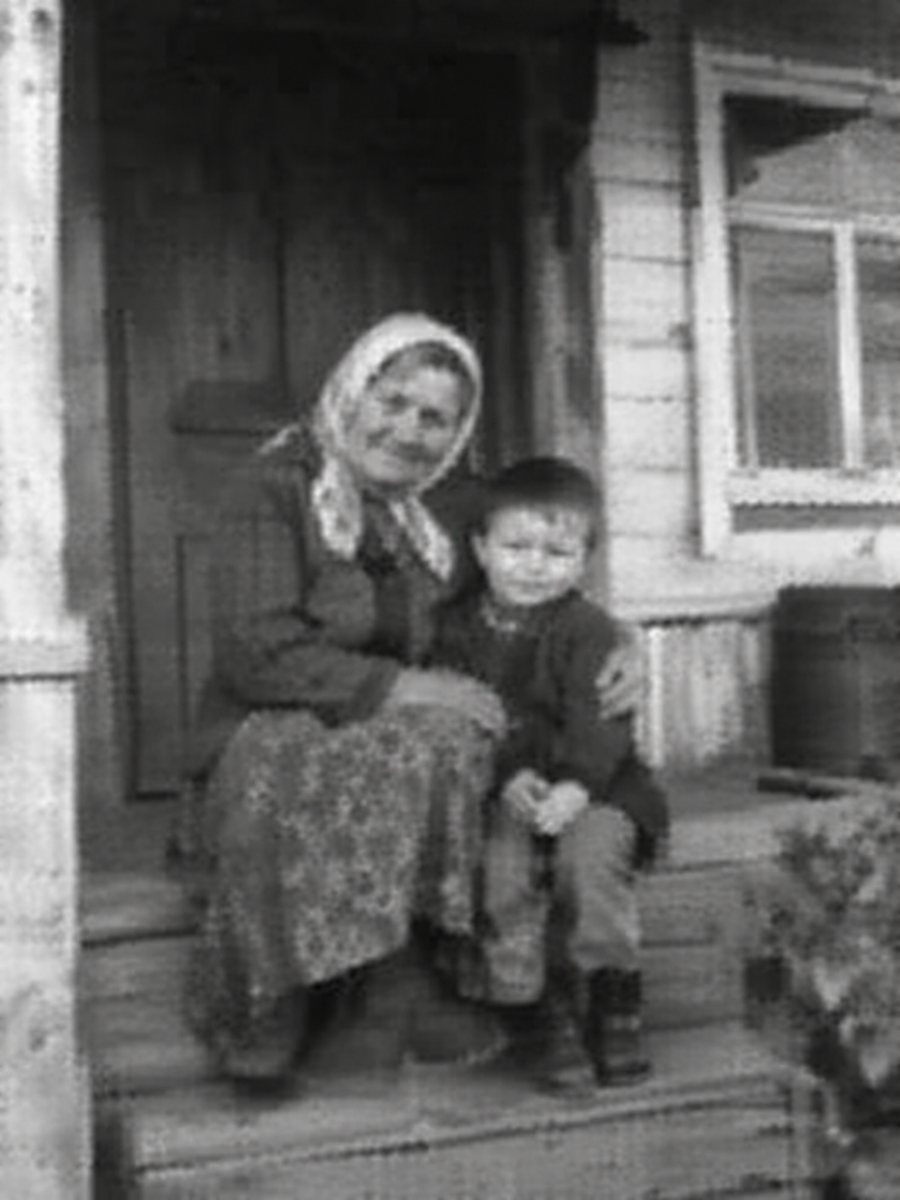
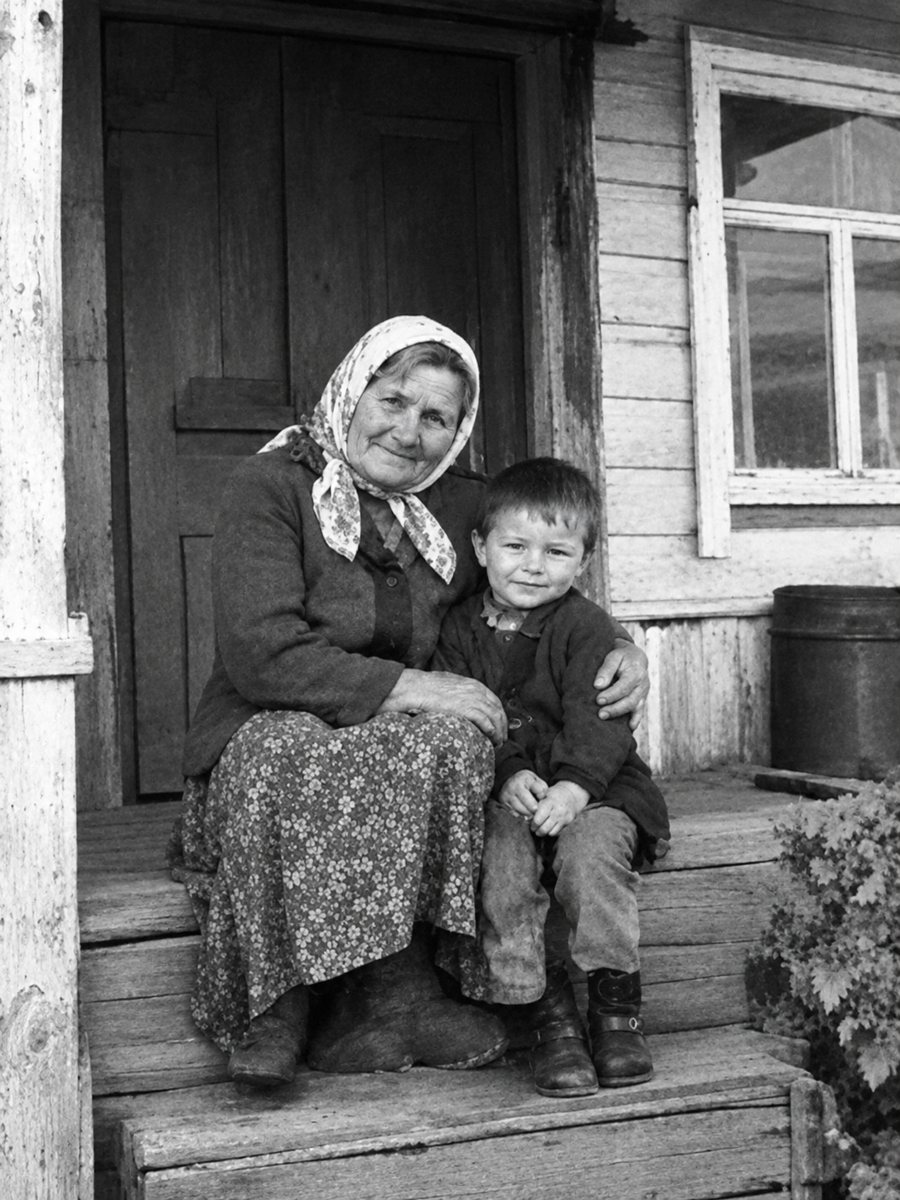 BeforeAfter
In short: A scan with few pixels looks blocky and soft. The bot can add detail and sharper edges, but a rescan at higher dpi is the best first step.
- Where: the VisuMate bot in Telegram, no app or sign-up.
- Cost: 2 credits per image, 7 images free, then packs from 49 Telegram Stars.
- Time: 1 to 2 minutes per image, rerun with a new instruction at the same price.
When you need this
- The only digital copy is a tiny file.
- The picture looks blocky when enlarged.
- The original print is lost.
How to do it
- 1
Tap the button on this page. Telegram opens the bot, press Start and the right mode is already selected.
- 2
Send the picture as a file (document) so Telegram does not compress it further. In the caption write: improve this low resolution scan, sharper faces, keep the original look.
- 3
In 1-2 minutes the sharpened picture arrives in the chat. Download it and compare faces with the original at full size.
Try it on your own photo: 7 images are free, no sign-up.
Make it in TelegramRescan if you can
Scanning at a higher resolution captures real detail that no software can invent. A 4 by 6 inch print scanned at 600 dpi gives 2400 by 3600 pixels. If the print still exists, rescan before you use AI. Otherwise the sharpen mode is the best option. The bot replies in English. You can switch the language any time with /lang.
What the AI adds
When the print is lost, the AI adds plausible detail based on patterns it learned. Results look cleaner, but the new detail is a guess. This is fine for sharing and a small print. For anything formal, treat the result as an illustration and keep the small original. Save every version in the same folder and add the year and the names to the file name so nothing gets mixed up later.
Tips
- If you have the print, rescan at 600 to 1200 dpi.
- Do not enlarge the file before sending it.
- Send as a document to avoid more compression.
- Check the pixel size of the result.
Questions and answers
Is it the same as upscaling?
It adds detail, not just pixels.
How big will the result be?
Check after download.
Can I print the result?
Check the size first.
Should I enlarge it first?
No.
More in "Photo restoration"
- Sharpen faces in an old group photoGroup photos have small faces that blur easily. Learn how to send the file, how to check each face and...
- Sharpen a blurry childhood photoChildhood snapshots are often blurry because kids move. Send the scan and get a clearer version, then...
- Fix an out-of-focus old photoIf the focus missed the subject, the bot can rebuild edges and detail. Find out what works, what does not...
- How to restore old family photos at homeA plain guide to restoring family photos: scanning, choosing a mode, checking faces and storing the...